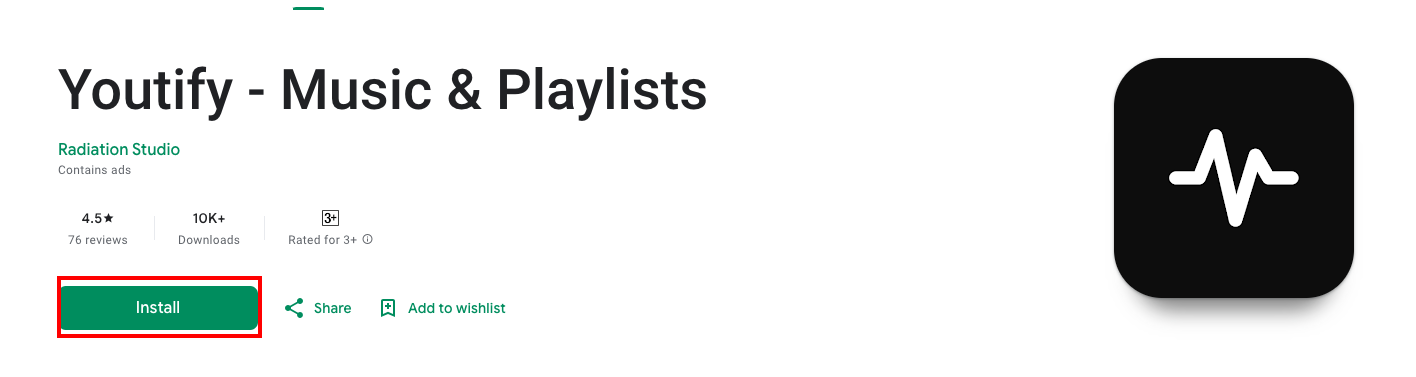
Youtify for Windows 10, 11, 7, 8: The Ultimate Music Streaming Solution for Desktop and Laptop Users
Introduction: Unlock the Full Potential of Music on Your Windows PC with Youtify - Music has always played an essential role in our daily lives, and today’s digital world makes it even easier to access. Whether you’re using your Windows 10, Windows 11, Windows 7, or Windows 8 desktop or laptop,
Youtify is the ideal music streaming and management app designed to elevate your listening experience. With a wide range of features that cater to both casual listeners and music enthusiasts, Youtify provides an all-in-one platform for discovering, managing, and enjoying music with ease.
In this article, we will explore how Youtify can transform your music experience on Windows, offering seamless streaming, offline playback, and local file management. Whether you’re at home, working in the office, or on the go, Youtify ensures your music library is always at your fingertips.
Why Youtify for Windows Is the Best Music App for Your Desktop and Laptop
1. Seamless Integration with Windows Operating Systems
Youtify is designed to work flawlessly on all major Windows versions, including Windows 7, Windows 8, Windows 10, and Windows 11. The app is lightweight, ensuring it runs efficiently without consuming excessive system resources,
even on older PCs. Its user-friendly interface is optimized for both desktop and laptop screens, allowing you to enjoy music in full-screen mode or in the background while multitasking.
2. High-Quality Streaming and Audio
With Youtify, you can stream music in 320kbps high-quality audio, ensuring a crystal-clear listening experience. Whether you're using high-end speakers or just the built-in sound system of your PC,
Youtify ensures that every note, beat, and lyric is delivered with exceptional clarity. Plus, for users who enjoy music videos, Youtify offers HD video streaming for an immersive multimedia experience.
3. Offline Music for When You Need It Most
One of the standout features of Youtify for Windows is the ability to download music for offline listening. This feature is perfect for users who may not always have access to a stable internet connection or those who want to save on data usage.
You can easily download songs, albums, or entire playlists and listen to them anytime without the need for an internet connection.
4. Manage Your Local Music Files
Youtify isn’t just about streaming music online—it also offers seamless integration with your local music library. Whether you have a collection of MP3 files or other audio formats stored on your Windows PC,
Youtify allows you to import and play your local files alongside your streamed content. This creates a unified music experience, so you don’t have to switch between apps to enjoy both downloaded music and streaming tracks.
5. Personalized Music Recommendations
Youtify offers smart personalized recommendations based on your listening history and preferences.
The app uses advanced algorithms to suggest new music, albums, and playlists that suit your tastes. This ensures that you’re always discovering new artists and songs, keeping your music library fresh and exciting.
6. Create and Curate Playlists
With Youtify, you can easily create and organize your own playlists. Whether you want a playlist for your workout, study session, or relaxing evening, Y
outify provides an intuitive interface to add and arrange songs. You can even share your playlists with friends or explore playlists curated by others for new music inspiration.
7. Cross-Platform Synchronization
Youtify supports synchronization across devices, meaning you can start listening on your Windows desktop or laptop and pick up right where you left off on your phone or tablet.
This feature is perfect for users who like to switch between devices throughout the day.
How to Install and Set Up Youtify for Windows
Setting up Youtify on your Windows PC is simple. Just follow these easy steps:
Step 1: Download Youtify for Windows
Go to the official Youtify website or the Windows app store (if available) and download the installer file for Youtify.
Ensure that your system meets the minimum requirements for installing the app (Windows 7/8/10/11 with at least 2GB of RAM and 1GB of available storage space).
Step 2: Install the Application
Open the downloaded installer file and follow the on-screen instructions to complete the installation process.
Once installed, you can launch Youtify from your desktop or start menu.
Step 3: Sign In or Create an Account
Open Youtify and sign in with your existing account or create a new one if you don’t have an account yet. Signing in allows you to sync your playlists, music preferences, and downloaded songs across all devices.
Step 4: Start Streaming Music
Browse the vast music library available on Youtify. You can explore trending songs, curated playlists, or search for specific tracks, artists, or albums.
To download music for offline listening, simply click the download icon next to your preferred content.
Step 5: Import Local Files
Youtify allows you to import MP3s and other audio files stored on your PC. Go to the "Local Music" section in the app and add your personal music collection for easy access.
Benefits of Using Youtify for Windows on Your Desktop or Laptop
1. Versatility in Music Consumption
Youtify provides users with a versatile platform that combines both streaming and offline music management. It’s the perfect solution for those who want to listen to music regardless of their internet connection, while still having access to a massive online library.
2. Easy Navigation and User Interface
The interface is designed to be simple and intuitive, allowing you to focus on enjoying your music rather than fumbling through complicated settings. Whether you are creating playlists, exploring recommendations, or managing downloads, everything is just a click away.
3. Minimal System Resource Usage
Youtify is optimized to run efficiently on both high-end and older PCs. The app doesn’t require a significant amount of RAM or CPU usage, meaning it won’t slow down your system, even when running multiple apps simultaneously.
4. Enhanced Audio Quality
Youtify streams music in 320kbps, ensuring high-quality audio for all types of speakers and headphones. Whether you’re listening to a podcast, playlist, or music video, you can expect an enhanced audio experience.
5. Sync Across Devices
The ability to sync your account across devices is another great feature. It allows you to seamlessly switch between your PC, smartphone, or tablet without losing track of your playlists or music preferences.
FAQs About Youtify for Windows
1. What versions of Windows does Youtify support?
Youtify is compatible with Windows 7, Windows 8, Windows 10, and Windows 11.
2. How do I download music for offline listening?
To download music for offline use, simply click the download icon next to a song, album, or playlist, and it will be saved to your device. You can access your downloads in the "Offline Library" section.
3. Can I import my own MP3 files into Youtify?
Yes! Youtify allows you to import your local MP3 files and integrate them with your streamed music, creating a unified library.
4. Is Youtify free to use?
Youtify offers both free and premium plans. The free plan includes ads and some limitations on offline downloads and streaming quality. The premium plan removes ads, offers offline downloads, and provides higher-quality streaming.
5. How do I sync my Youtify account across devices?
Simply log in to your Youtify account on all your devices, and your playlists, downloads, and preferences will sync automatically across them.
6. Can I create custom playlists in Youtify?
Yes, Youtify allows you to create custom playlists, add or remove songs, and organize your music in any way you like.
7. Does Youtify support music videos?
Yes, Youtify offers streaming for both audio tracks and music videos in HD quality.
8. Can I stream music in high quality?
Yes, Youtify supports streaming in 320kbps high-quality audio for an exceptional listening experience.
9. How much storage space does Youtify require?
Youtify is a lightweight app and doesn’t require a lot of storage space. For optimal performance, it requires at least 1GB of available storage for installation.
10. How do I get started with Youtify for Windows?
Download and install Youtify from the official website, sign in or create an account, and start exploring the music library. You can stream music, create playlists, or download songs for offline listening.
Conclusion: Youtify – The Ultimate Music App for Your Windows PC
Youtify for Windows is the ultimate music streaming and management tool for your desktop and laptop. With high-quality streaming, offline playback, and seamless integration with local files, it offers everything you need to enjoy music on your PC.
Whether you’re at home, in the office, or on the go, Youtify ensures you have the perfect soundtrack for every moment. Try it today and unlock a world of music right at your fingertips!